TikTok Duets are among the platform's most engaging formats, allowing you to record your own video alongside another creator's post. Whether you are reacting to a funny clip, singing harmony with a musician, or demonstrating a contrasting opinion, Duets encourage natural collaboration and community interaction. This tutorial walks you through how to use the Duet feature, adjust layouts and sound levels, and troubleshoot common issues.
What Is a TikTok Duet and How Does It Work?
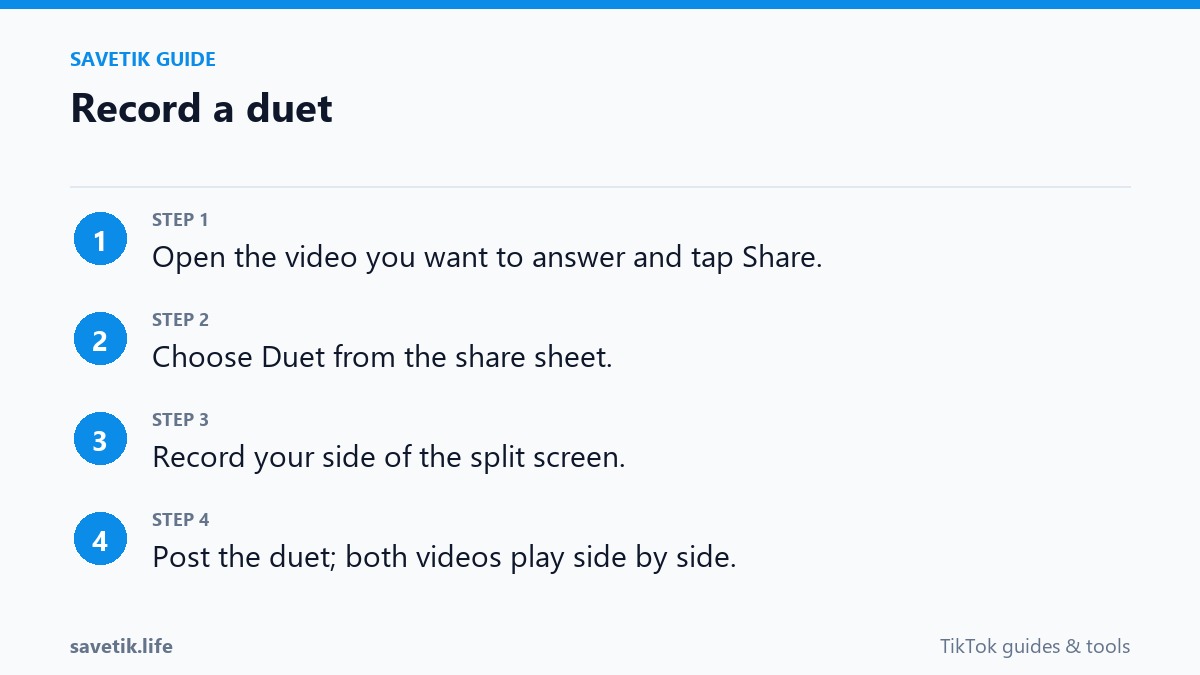
A Duet places your newly recorded video side-by-side (or top-and-bottom) with an existing video from another creator. When published, the Duet plays both clips synchronously, giving credit to the original creator in your post caption. Viewers can tap the tagged handle to view the source video, creating an interactive bridge between both accounts.
Step-by-Step: Recording Your First TikTok Duet
- Open the TikTok app and find the public video you want to duet with.
- Tap the Share button (the curved arrow icon) on the right side of the screen.
- In the bottom row of action icons, look for the Duet icon (two overlapping squares). If the icon is greyed out, the creator has disabled duets on that specific post.
- Once the Duet recording screen opens, tap the Layout icon on the right toolbar to choose your split-screen style: Left & Right, Top & Bottom, Green Screen, or Picture-in-Picture (React).
- Tap the red Record button to film your reaction, performance, or commentary alongside the original video.
- Review your take, apply filters or text overlays, and tap Next to proceed to the caption screen.
Mastering Audio Settings: Balancing Your Voice and Original Sound
One of the most common mistakes beginners make is letting the original video's audio overpower their voice. TikTok provides dedicated volume sliders to achieve a balanced mix:
- On the editing screen after recording, tap the Volume tool.
- Adjust the Original Sound slider to control the volume of the other creator's video.
- Adjust the Added Sound / Mic slider to ensure your spoken commentary or singing is clear and audible.
- If you want to mute the original track entirely and substitute your own voiceover, slide Original Sound to zero.
Why Is the Duet Button Greyed Out or Missing?
If you cannot find the Duet button on a video, it is usually due to one of three privacy settings:
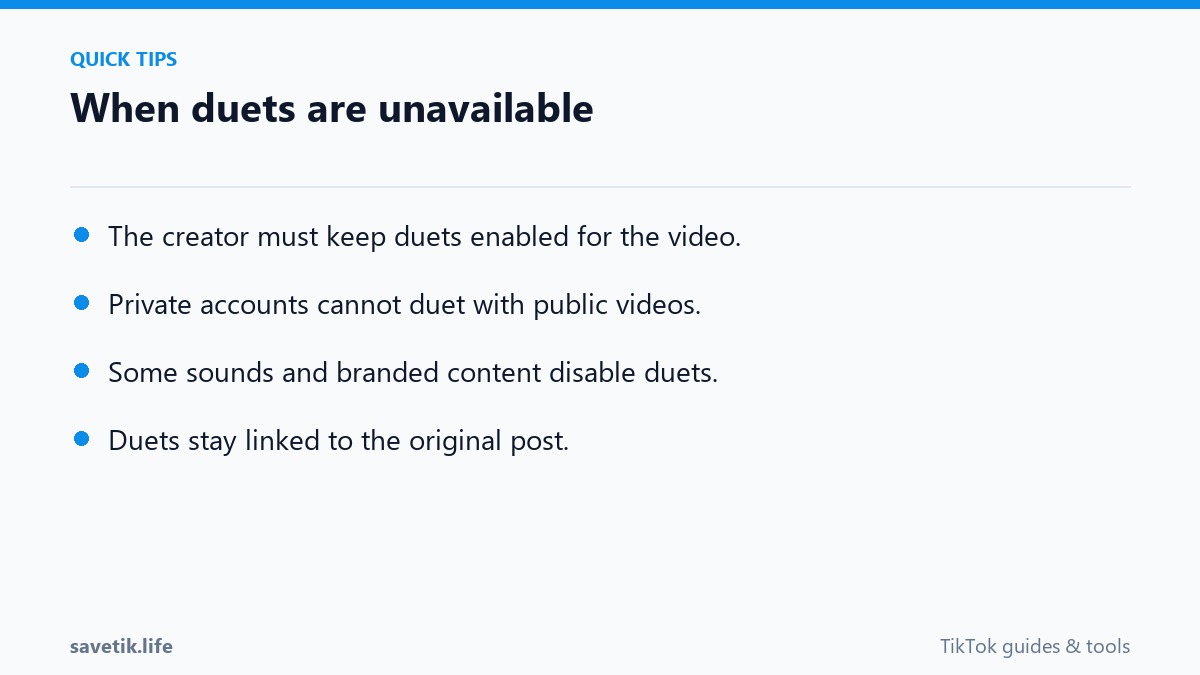
- Creator Privacy Setting: The creator turned off Duet permissions for that individual video or set their global account privacy to allow Duets only from friends.
- Account Age Restrictions: TikTok automatically restricts Duet functionality for users under the age of 16 to maintain child safety standards.
- Private Account: Videos posted by private accounts cannot be duetted by external users.
Archiving Collaborative Duets on Your Device
After producing a memorable duet with another creator, you may want to keep a permanent offline copy for your portfolio or cross-platform reels. By pasting the public link of your published Duet into SaveTik, you can download the complete split-screen MP4 video directly to your smartphone or desktop computer.
Creative Concepts for Engaging TikTok Duet Videos
If you want to maximize community interaction through Duets, consider these popular creative structures:
- The Expert Reaction: Position yourself alongside a tutorial or life hack video, offering professional commentary, constructive feedback, or testing whether the hack actually works in real life.
- Musical Harmonies and Instrument Stacking: Add vocal harmonies, acoustic guitar rhythms, or drum beats to another musician's open-verse challenge.
- Comedic Side-Eye and Silent Acting: Non-verbal reactions featuring expressive facial cues or physical comedy often generate high engagement without needing complex dialogue.
- Educational Contrast: Show two contrasting methodologies side-by-side to compare beginner vs. advanced techniques in sports, cooking, or digital art.
Frequently Asked Questions About Duets
Can I use pre-recorded video footage when creating a Duet?
Yes. Instead of recording live through the camera, tap the Upload icon in the bottom-right corner of the Duet interface to select an existing video file from your camera roll.
Why did my Duet lose its audio track after publishing?
If the original creator used a licensed commercial sound that subsequently lost its rights agreement, all dependent Duets will have their audio automatically muted by the system.
Technical Pacing and Framing Tips for Split-Screen Duets
To make your Duet visually compelling and seamless for viewers, keep these production techniques in mind:
- Match Eye Level: Position your phone camera at the same height and tilt angle as the creator in the original video to create a natural conversational dynamic.
- Consistent Lighting: Use a balanced ring light or natural window light so your half of the split-screen matches the exposure level of the source clip.
- Pacing and Reaction Timing: Do not react prematurely. Allow punchlines, unexpected moments, or musical cues in the original video to unfold before delivering your reaction.
- High-Contrast Text Placement: Keep any added subtitles or captions strictly within your half of the screen so you do not cover the original creator's visual elements.