TikTok is filled with stunning visual loops, relaxing nature footage, anime edits, and aesthetic cinematography perfectly framed in vertical 9:16 aspect ratio. If you have ever wanted to turn your favorite visual clip into an animated dynamic lock screen wallpaper on your smartphone, you can easily do so using built-in phone features. This guide walks you through setting up live wallpapers on both iPhone and Android.
Method 1: Setting Live Wallpapers on iPhone (iOS)
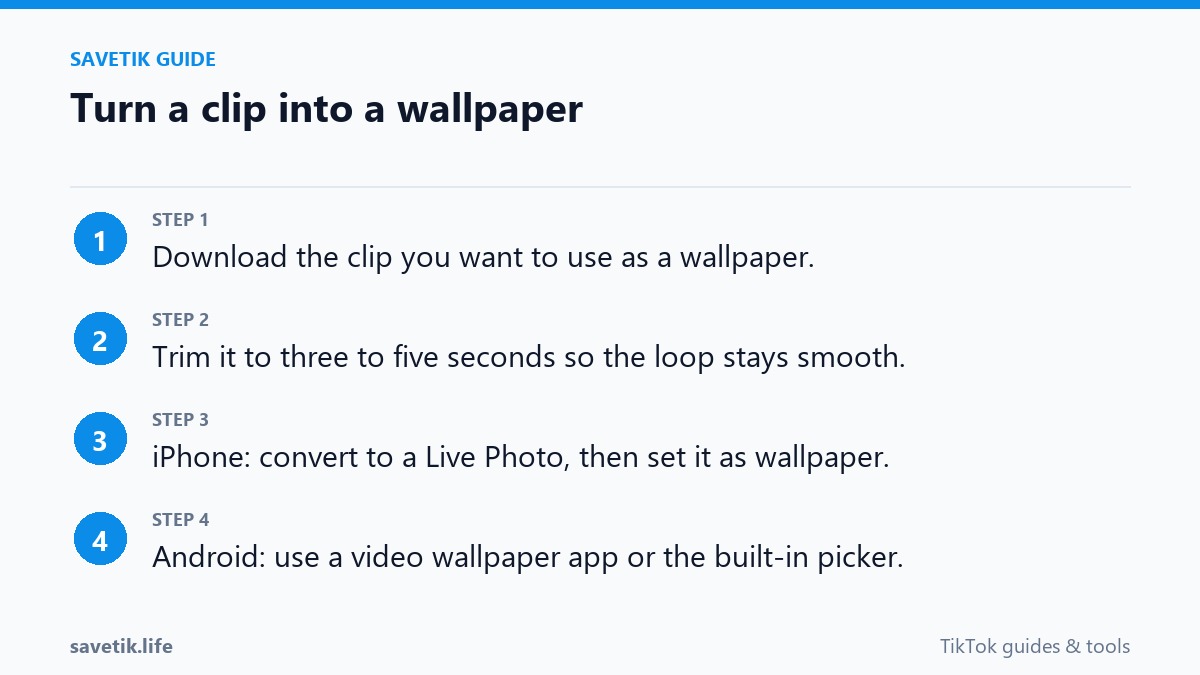
Modern versions of iOS allow users to set Live Photos as dynamic lock screen backgrounds that animate smoothly whenever you wake your display:
- Open the TikTok app and navigate to the vertical video you want to use as your wallpaper.
- Tap the Share button on the right side of the screen.
- In the bottom row of action options, look for Live photo. (If this button is missing, the creator has disabled direct downloads on that clip).
- TikTok will automatically convert the video segment into a Live Photo and save it into your Photos app.
- Open the Settings app on your iPhone, tap Wallpaper, and select Add New Wallpaper.
- Tap the Live Photo category, select your converted TikTok clip, and ensure the Live Photo motion icon is turned on at the bottom of the screen.
- Tap Add in the top-right corner and choose Set as Wallpaper Pair or customize your lock screen.
Method 2: Setting Video Wallpapers on Android
Android provides flexible native options for setting animated video backgrounds on your home and lock screens:
- In the TikTok app, tap Share on the desired video and choose Set as wallpaper.
- If prompted, install the official lightweight companion plugin (TikTok Video Wallpaper by TikTok Pte. Ltd. from the Google Play Store).
- Follow the on-screen prompt to preview the clip and tap Apply to set it as your Home screen, Lock screen, or both.
Alternative: Using SaveTik for High-Fidelity Video Files
If you prefer using specialized wallpaper manager apps (such as Video Live Wallpaper on Android or converter utilities on iOS), you can first acquire the clean source MP4 video file using SaveTik. Simply copy the public TikTok link, paste it into our downloader, and save the full 1080x1920 MP4 file directly to your device gallery without watermark overlays.
Battery and Performance Considerations
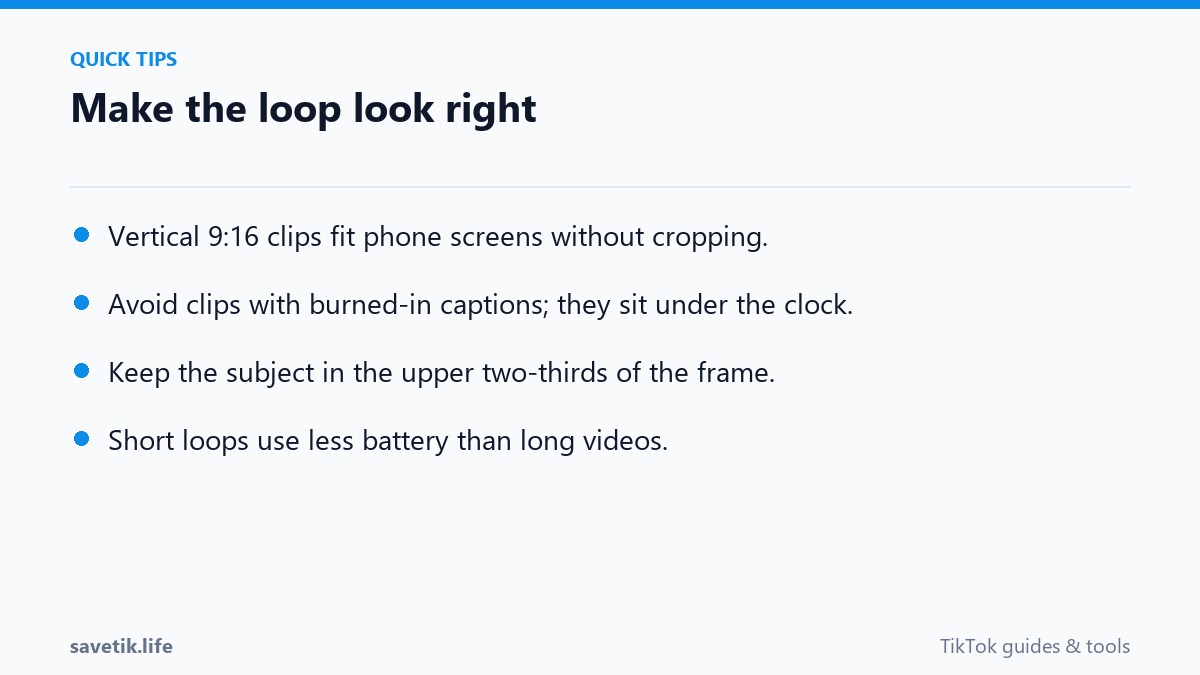
While animated wallpapers look dynamic and personalized, playing continuous video loops whenever you unlock your device consumes slightly more battery than static images. To optimize battery life, choose videos with calm motion and lower screen brightness, or apply the animated video exclusively to your lock screen rather than your home screen.
Troubleshooting Common Live Wallpaper Display Issues
If your animated wallpaper fails to animate or displays static imagery, review these common configuration fixes:
- Low Power Mode Active: On both iPhone and Android, Low Power Mode automatically disables lock screen motion effects and Live Photo animations to conserve battery life. Turn off Low Power Mode to restore wallpaper animation.
- Haptic Touch / Long-Press Settings: On certain iOS versions, you must press and hold the lock screen display to trigger the Live Photo animation rather than having it run on a continuous loop.
- Ensure Video Live Wallpaper Plugin Has Permissions: On Android, verify that the companion wallpaper service has permission to run in the background without being killed by aggressive battery management settings.
Frequently Asked Questions About Video Wallpapers
Does having an animated video wallpaper drain phone battery quickly?
Live wallpapers only animate when your display is active and you are looking at your lock screen. Because your phone display is typically awake for only a few seconds before unlocking, the battery impact is minimal (usually under 2-3% daily).
Can you add sound to your lock screen video wallpaper?
No. Both Apple iOS and Google Android intentionally disable audio playback for lock screen wallpapers to prevent unexpected noises when waking your phone in public spaces.
Optimization Strategies for Animated Lock Screens
To achieve the best balance between visual flair and phone battery efficiency, follow these practical recommendations:
- Select Calm Looping Clips: Subtle ambient loops (such as flowing water, drifting clouds, or gentle anime rain) look more elegant and draw less processing power than rapid flashing edits.
- Ensure High Native Sharpness: Download the source video at full 1080x1920 resolution through SaveTik to prevent blurry upscaling on high-density Retina or OLED displays.
- Pair with Static Home Screens: Set the animated video exclusively on your Lock screen and use a clean static image on your Home screen to keep app icons legible.
- Test Dynamic Contrast: Verify that the clock font and lock screen widgets remain clearly readable against the moving video background.