TikTok is one of the most prolific sources of catchy audio clips, acoustic covers, and funny sound bites on the internet. If you have ever discovered a sound on TikTok that you want to use as an incoming call ringtone, alarm, or text notification on your smartphone, you can easily do so in a few simple steps. This guide walks you through extracting the audio track and setting it as a custom tone on both iPhone and Android.
Step 1: Extract the Audio Track from the TikTok Video
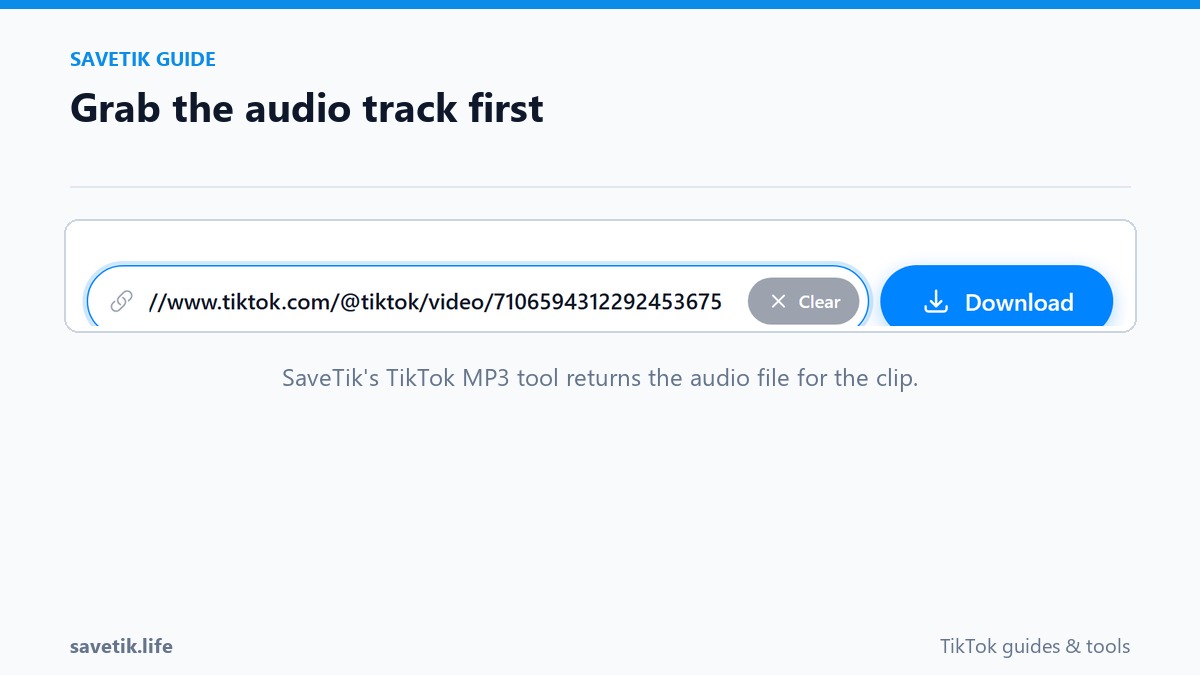
Before you can assign a custom ringtone, you must first extract the audio track from the TikTok clip:
- Open TikTok, navigate to the video featuring the sound you want, tap Share, and choose Copy link.
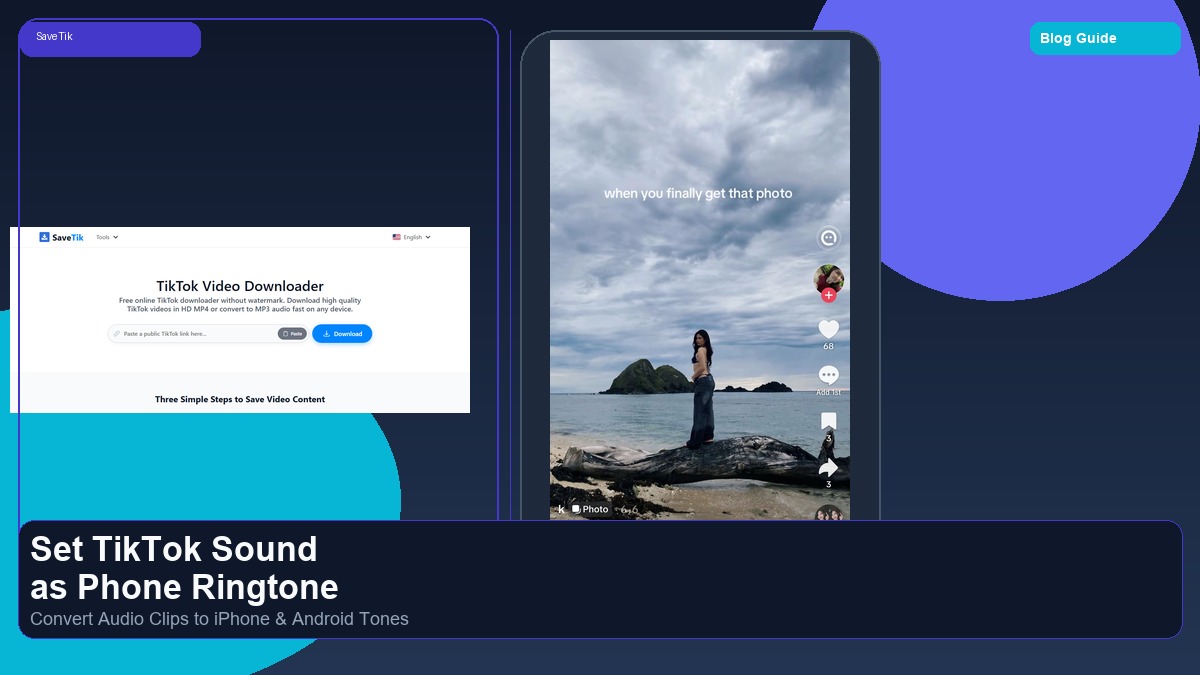
- Open your mobile web browser and go to the SaveTik TikTok MP3 Downloader.
- Paste the URL into the input field and click Download to save the extracted audio file into your device Downloads folder.
Step 2: Setting the Ringtone on iPhone (Using GarageBand)
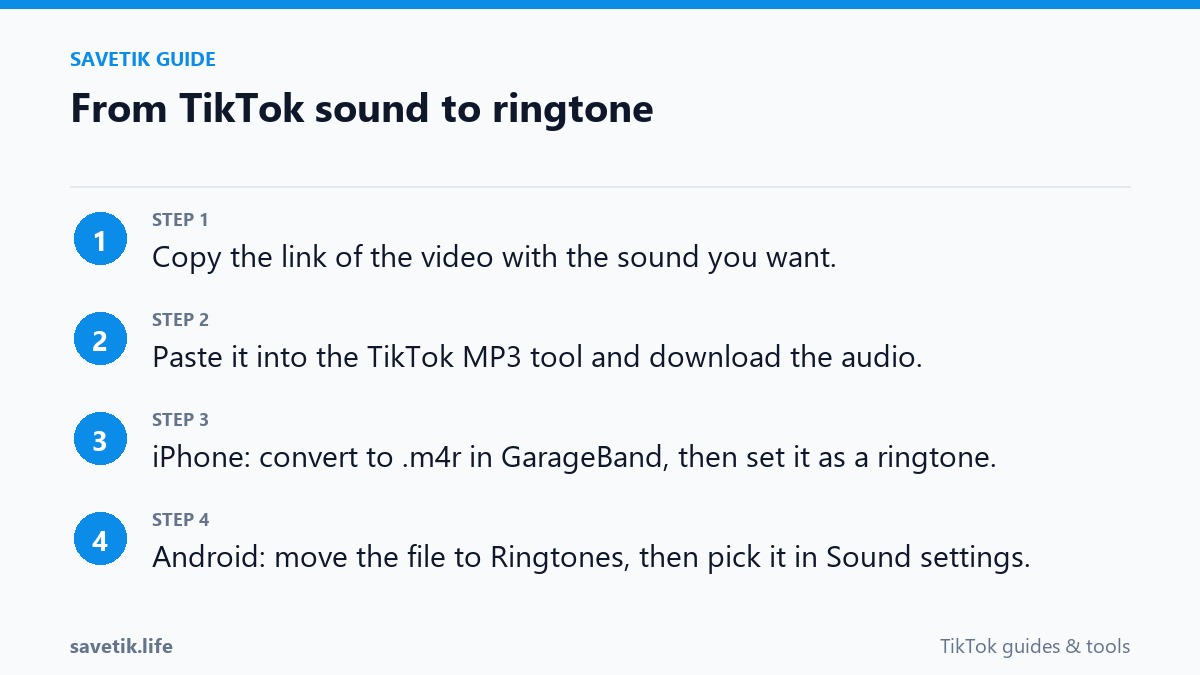
Apple requires ringtone files to use the proprietary .m4r format and be under 30 seconds in length. The easiest way to create one directly on your iPhone without a computer is using Apple's free GarageBand app:
- Download GarageBand from the App Store if you do not already have it installed.
- Open GarageBand, swipe to the Audio Recorder instrument, and tap Voice.
- Tap the Tracks icon (the small brick wall icon in the top toolbar) to switch to the timeline view.
- Tap the Loop icon in the top-right corner, select the Files tab, and tap Browse items from the Files app to locate your downloaded audio file.
- Drag the audio file onto the timeline. Trim the clip to your favorite section (under 30 seconds).
- Tap the down arrow in the top-left corner and tap My Songs to save your project.
- Long-press the saved project tile, select Share, choose Ringtone, give it a name, and tap Export.
- Tap Use sound as... and choose Standard Ringtone or Standard Text Tone.
Step 2: Setting the Ringtone on Android Devices
Setting a custom ringtone on Android is much simpler because Android natively supports standard audio formats:
- Open the Settings app on your Android smartphone.
- Tap Sound & vibration, then select Phone ringtone (or Notification sound).
- Tap My Sounds or the + icon in the top-right corner.
- Browse your device storage to locate the downloaded audio file in your Downloads folder.
- Select the track and tap Save or Apply.
Tips for High-Quality Audio Tones
To ensure your custom ringtone sounds loud and clear through your phone speakers, pick TikTok clips with clean audio that are free from background wind or crowd noise. Trimming the audio so it starts immediately with the hook ensures you never miss an incoming call.
Advanced Audio Editing: Creating Seamless Ringtone Loops
A well-crafted ringtone loops seamlessly without abrupt audio cutoffs. Here is how to refine your audio file using mobile editing tools:
- Identify the Catchiest Section: Listen to the clip and identify the 15-to-25-second hook that features clear vocals or dynamic instrumentation.
- Apply Fade-In and Fade-Out: Adding a brief 0.5-second fade-in at the beginning and a 1-second fade-out at the end prevents sudden jarring volume spikes when your phone rings in quiet environments.
- Normalize Volume Levels: Audio recorded on TikTok can vary wildly in loudness. Use audio editing tools to normalize the peak volume so your tone is loud enough to hear in noisy settings without distorting speaker output.
Frequently Asked Questions About Custom Tones
Can I set different TikTok sounds for individual contacts?
Yes. On both iPhone and Android, open the Contacts app, select a specific contact, tap Edit, and assign your custom tone exclusively to that person.
Why does my custom ringtone not appear in the iPhone settings menu?
Custom tones on iOS must be exported through GarageBand directly to the system Ringtone database. Standard MP3 files placed in the Files app will not appear in the Settings > Sounds menu unless exported via GarageBand.
System Guidelines for Managing Custom Ringtone Files
To keep custom ringtones operating reliably across software updates, observe these device guidelines:
- Keep File Lengths Moderate: Standard ringtones should range between 20 and 28 seconds. Clips exceeding 30 seconds may be automatically truncated by iOS ringtone managers.
- Avoid Peaking and Distortion: Ensure the peak master volume does not exceed -1 dB to prevent speaker distortion on high mobile volume settings.
- Maintain Clean Backups: Store your trimmed audio files in a dedicated cloud folder so you can quickly reassign custom tones when setting up a new smartphone.
- Separate Tone Categories: Use punchy, sharp sound effects for text notifications and melodic, rhythmic clips for voice calls.