TikTok Live broadcasts provide real-time interaction between creators and viewers, featuring spontaneous Q&A discussions, live product demonstrations, gaming streams, and acoustic performances. Because live streams are unscripted real-time broadcasts, they do not remain permanently on the creator's profile feed once the session ends. This guide covers how creators and viewers can capture, save, and preserve live stream highlights on mobile and desktop.
Option 1: For Stream Hosts: Accessing TikTok Live Replays
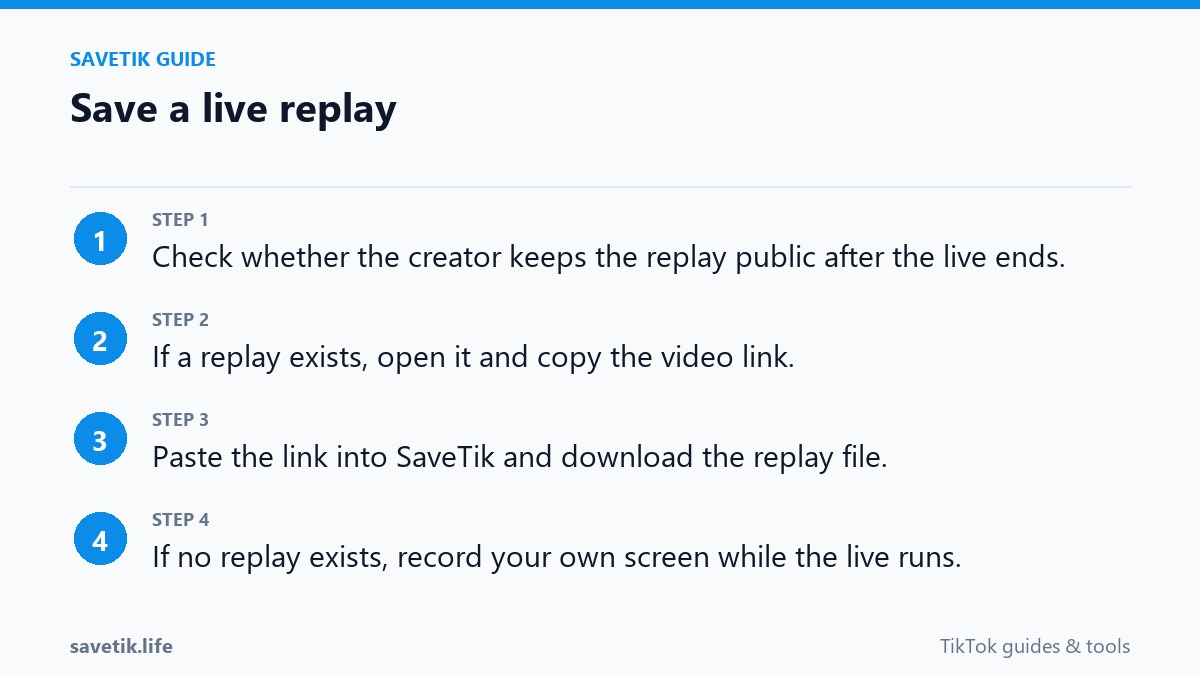
If you are the creator who hosted the live broadcast, TikTok automatically generates a temporary recording of your completed session through the Live Center:
- Open the TikTok mobile app and go to your Profile.
- Tap the menu button (three horizontal lines) in the top-right corner and select Creator tools.
- Tap Live Center and scroll down to the Replays section.
- Locate your past live broadcast. TikTok stores these recordings for up to 30 days following the broadcast.
- Tap Download to save the complete session directly to your phone's camera roll, or choose Generate highlights to clip short moments for your main feed.
Option 2: For Viewers: Native Screen Recording on Mobile
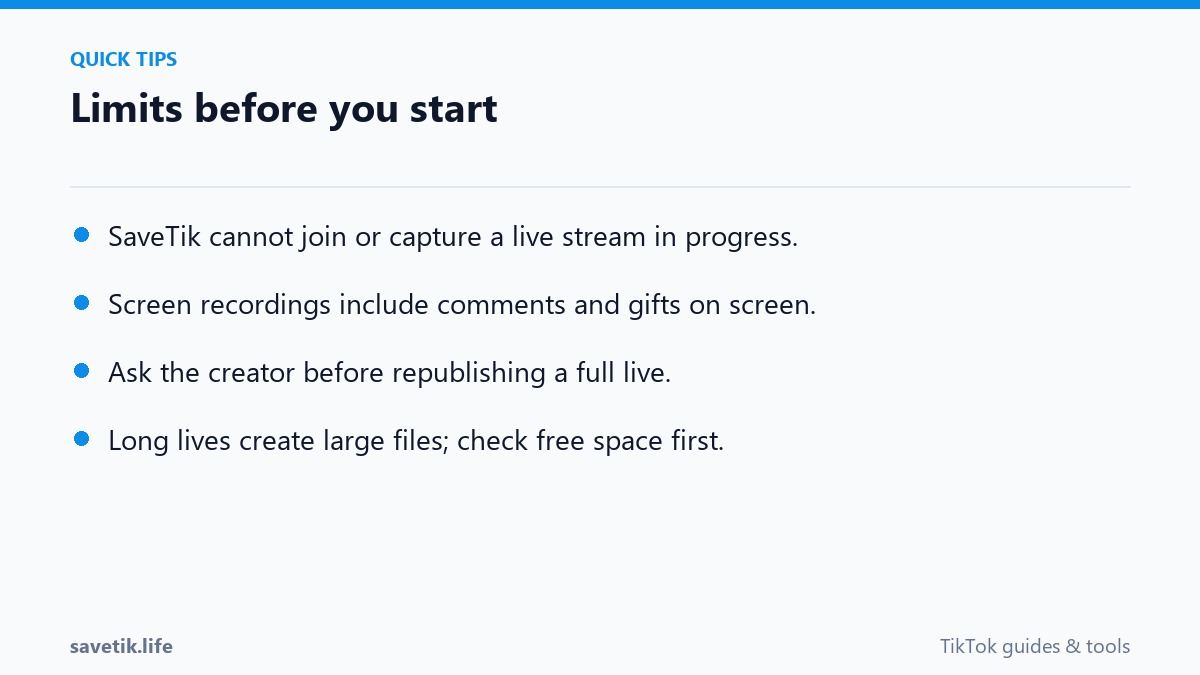
If you are watching someone else's public broadcast and want to capture a memorable answer or musical segment, the most practical method is utilizing your phone's native screen recording utility:
- On iOS (iPhone & iPad): Ensure the Screen Recording toggle is enabled in Settings > Control Center. While watching the stream, swipe down from the top-right corner and tap Record. Tap the microphone icon if you want to include ambient commentary, or leave it off to capture internal device sound cleanly.
- On Android: Swipe down twice from the top of the display to access Quick Settings, tap Screen record, set audio source to Media audio, and start capturing.
- Helpful Tip: Swipe right across the screen while watching a TikTok Live stream to hide the live comments and heart animations, giving you a clean, unobstructed view of the video feed.
Option 3: Desktop Stream Recording with OBS Studio
For researchers, gaming enthusiasts, and community managers who monitor streams from a computer, open TikTok Live in a desktop browser and use OBS Studio (Open Broadcaster Software) to record the window. OBS allows you to capture high-resolution desktop video with custom audio levels and store the footage directly onto external hard drives.
Archiving Published Stream Highlights with SaveTik
When creators edit down their live sessions into short teaser clips and post them to their public TikTok feed, you can easily save those permanent highlight videos using SaveTik. Simply copy the public post link, paste it into our online downloader, and save the clean MP4 file to your device for offline viewing anytime.
Legal and Ethical Considerations When Archiving Live Streams
Because live broadcasts often capture spontaneous, unscripted moments, respecting personal privacy and fair use boundaries is paramount:
- Private Offline Use Only: Keep recordings of public live discussions for personal educational reference and study. Never reupload entire live streams to public platforms without explicit written consent from the host.
- Protecting Participant Privacy: If guest viewers joined the broadcast on split-screen, be mindful that they may not want their spontaneous comments archived or shared across third-party websites.
- Avoiding Commercial Misuse: Never attempt to monetize, sell access to, or repurpose another creator's live stream content.
Frequently Asked Questions About Live Streams
How long does TikTok store Live Replays for hosts?
TikTok retains complete broadcast recordings inside the host's Live Center for 30 calendar days before permanently deleting them from server storage.
Can viewers download full multi-hour live streams directly through a URL?
No. TikTok does not generate public downloadable URLs for ongoing or concluded full-length live broadcasts. Viewers can only capture live footage via screen recording while the stream is active, or download published highlight clips using SaveTik.
Best Practices for Recording Clean Live Stream Footage
When capturing live broadcasts for research or personal reference, follow these preparation steps:
- Enable Do Not Disturb: Always turn on Do Not Disturb or Focus mode before initiating mobile screen recording to prevent private text notifications from appearing in your capture.
- Verify Available Storage: Live stream video files consume approximately 1 GB to 2 GB per hour of capture. Confirm you have adequate free storage before recording lengthy broadcasts.
- Use Stable Wi-Fi Connections: Stream stutter and buffering artifacts will be permanently baked into screen recordings. Connect to a high-speed Wi-Fi network for smooth visual capture.
- Respect Platform Boundaries: Never monetize or distribute recordings of other creators' live sessions without written permission.